Wednesday, 14 August 2013

Share your data to anyone on internet from your computer

Hi,,,

This post will let you share your data on your PC over internet without involvement of any third party.
You save time and bandwidth consumed during data upload on data sharing websites like mediafire, 4shared, Dropbox,etc.

So lets begin
  1. Right click on the folder, you want to share.
  2. Select Share with, then select Specific people
  3. New window will appear, click on down arrow and select Everyone and then click Add
  4. Now change the permission level to Read or Read/Write according to your need, by click on down arrow.
  5. Now click share.
Your file is now shared to every one on your network. To access your files the other person should now your system password and your IP address on internet.

Now remove password protected sharing, from Network and sharing center, so that your data can be accessed without password otherwise you need to tell your PC password to your friends.

Now tell your public IP to your friend
You can find your public IP by opening website www.whatismyip.com

To open shared files, Go to run by shortcut keys Win + R then type \\xxx.xxx.xxx.xxx (Public IP)

Saturday, 10 August 2013

Super Hide your private folders,even after 'Show Hidden items' is set in Folder options

Hi everybody,

Lets hide our private folders in windows without using any tool, such that it is displayed when you asks windows to show hidden items.

To hide:
  1. First collect all your private documents and files in one folder and name it lets say, private_folder.
  2. Now right click on the folder and click Properties.
  3. Now copy the location from Properties window.
  4. Next open command prompt
  5. Type command cd and hit space, then right click and select Paste.
  6. Now type command attrib  +h  +s  /d  /s  private_folder
  7. Now the private_folder is hidden.
 
    To unhide:
    1. Open command prompt, go to the location where folder was present using cammand cd
    2. Now type command attrib  -h  -s  /d  /s  private_folder

    Friday, 9 August 2013

    Trick to hack any Facebook Account

    Here is the very popular trick to hack any Facebook account.

    The information shared here is for educational purpose only.

    This hack makes advantage of Facebook account recovery facility to reset Facebook password with help of Facebook friends.

    Lets start:
    1. Create at least 5 fake Facebook accounts, these accounts should not contain any of the other fake accounts in thier friends list.
    2. Now send friend requests with these fake account to target account and wait till he/she accepts the request.
    3. Open Facebook page, and click on Forget Your Password.
    4. Type email, full name, username, phone of target account to be hacked and hit Search
      .
    5. Now click No longer have access to these.
    6. Now type new email or phone of your choice in How Can We Reach You? form.
    7. If it asks for security question, type incorrect answers till yo see message You are trying to often, Try again later.
    8. Click Recover your account with help from friends
    9. Now select your fake account from the list to send codes to your fake accounts and click continue and send codes to friends when asked.
    10. Now login to your fake accounts to get codes and provide it to facebook.
    11. Now you can change password of facebook account and login to that account with email or phone you have set in STEP 6.
    Have fun....

    Filter unwanted emails to automatically apply action your choice

    Stop unwanted emails appearing in your inbox, filter similar messages in Google mail

    Lets start creating filter in Gmail:
    1. Login to your Gmail account.
    2. Go to your inbox
    3. If any unwanted message is present in the list, mark that email by clicking on the check boxes appearing on the list.
    4. Now click on More button.
    5. Then click on Filter messages like these.
    6.  You can also create new filter where you can set filter rules.
    7. Go to Settings, by clicking on Gear button or Settings in HTML view
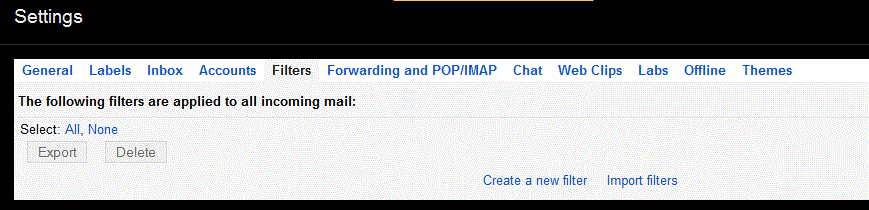
    8. Now click on Filters, then click Create New Filter.
    9. Here you can set, what email to be filtered according to the words present in email, subject, sender, receiver, etc.
    10. Click Create filter with this search.
    11. After creating filter, it asks what to do with filtered emails, you can set to, delete it, mark as read, etc.
       
    You have successfully set filter on emails you recieve.

      Wednesday, 7 August 2013

      Gmail Trick to undo sending email, stop them from being sent for few seconds after clicking Send

      Have you ever clicked the Send button mistakenly while composing message in Gmail ?? This post will help you in that situation...

      Here we go->
      1.  Open your Gmail Account.
      2. Now Goto Settings by clicking the gear logo just beneath your Name at top right corner.
      3. Now Click On Labs
      4. Now find Undo Send by Yuzo F
      5. Enable Undo Send and click Save Changes button at the bottom.
      6. Now, when you click send button after composing mail, you will notice Undo option, where normally email sent appears.
       You will be taken back to compose screen, after displaying Message "Sending has been undone"


      Enjoy :)

      Tuesday, 6 August 2013

      Trick to open websites even if it is not opening anywhere due to Shutdown, blocked, or any other reason. View Deleted contents and more

      Here is the cool trick for you all.

      In this post I'll tell you, how you can open any website even if it is expired or shutdown. You can view results that are removed from the Websites, deleted contents, any thing that was present but not available currently.

      This can be done using two services:

      Using Google Cache

      Google cache allows you to view the pages of website stored at Google's server, a copy of page from any website is stored in Google cache when any user visits that page using Google search engine.
      1. Search your website on Google.
      2. Next, instead of clicking on the links shown as result, click on the small down arrow icon and select cached.
      3. Now you will be sent to the page cached by Google.
      4. The page will obviously contain old data, here you can get the information you were looking for.
      Using Internet Wayback Machine
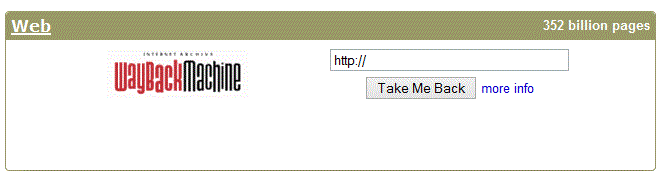
      1. Visit website: www.archive.org
      2. Now, enter the website URL in the Web Box and click Take Me Back.
      3. Now it will show calendar, you can click on the bubbles that represent new snapshot of website.You will be taken to that date.
      4. Now you can collect the deleted information, your results,etc.

      Open blocked websites using proxy

      Access restricted or blocked websites in your school and college using web proxy. Your activity will be hidden.

      Using Hidemyass Web Proxy Service.
      1. Open website : http://www.hidemyass.com/
      2. Form Web Proxy section, turn SSL Security on.
      3. Enter the website you want to access and hit Hide my ass button.
      Using Proxy Servers
      1. You can also open website without open hidemyass.com every time
      2. Open link: http://www.hidemyass.com/proxy-list/
      3. Uncheck the anonymity level:None, Low Medium
      4. Uncheck the Speed :Slow, Medium.
      5. Uncheck the Connection Time : Slow , Medium
      6. Now click on update results
      7. It will now list fast and anonymous proxy servers.
      8. Now open your web browser like Mozilla Firefox, Chrome, IE, etc
      9. And set Manual Proxy as from the list you got from hidemyass.com and apply
      Now you will be able to access blocked websites.

      If you want to learn, how to set manual proxy in Web browsers check my blog again.